Last updated: October 8, 2026
Short troubleshooting answer for monitors that stay black or show “no signal” when connected through a dock. Product details come from manufacturer listings and our existing guides; not a lab test.
As an Amazon Associate I earn from qualifying purchases.
Best for: Anyone whose monitor works plugged straight into the laptop but not through the dock.
Not for: Monitors that fail on every source (check the monitor and its power first).
The short answer
When a monitor is not detected through a dock, the cause is usually one of these:
- Cable or port mismatch. The laptop’s USB-C port may not carry video (no DisplayPort Alt Mode or Thunderbolt), or the dock is plugged into a data-only port. Use the laptop’s Thunderbolt/USB4 or video-capable USB-C port and the dock’s host port.
- The dock needs a driver. DisplayLink docks send video through a software driver. With no DisplayLink driver installed (or, on a Mac, no screen-recording permission), the extra monitors stay black. Native Thunderbolt / DisplayPort Alt Mode docks need no display driver.
- Mac and MST. macOS does not support MST extended displays. A dual-output hub that relies on MST will mirror or show one screen on a Mac. See why a MacBook won’t run two monitors.
- Host display limit. Base M1/M2 MacBooks support one external display natively; extra screens through a standard dock will not light up. Check the Apple Silicon display matrix.
- Daisy-chain limits. DisplayPort daisy-chaining (MST) is a Windows feature and needs monitors that support DP out. Chaining through a dock’s downstream Thunderbolt port still counts against the host’s display limit.
- Bandwidth. Two 4K screens at high refresh rates can exceed what the link or dock supports, so one screen drops out or falls back to a lower mode. Lower the refresh rate to test, and check the dock’s listed display modes.
- Old firmware or drivers. Update dock firmware, the laptop’s Thunderbolt/USB-C and graphics drivers (Windows), or macOS.
Quick checklist
| Check | What to do |
|---|---|
| Direct test | Plug the monitor straight into the laptop. If it fails there too, it is not the dock. |
| Laptop port | Use the Thunderbolt/USB4 or DisplayPort Alt Mode USB-C port. |
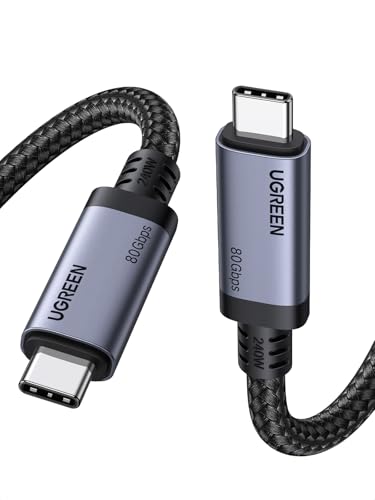
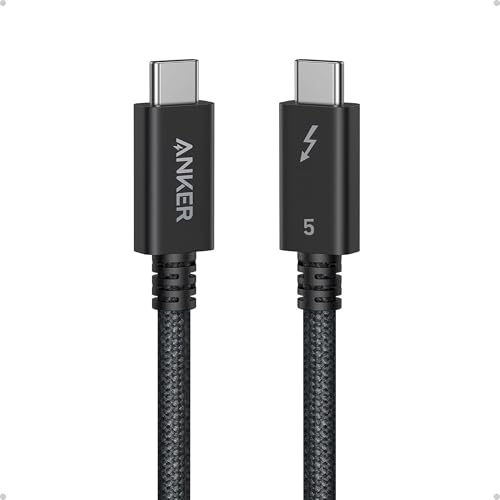
| Dock cable | Use the dock’s original or a certified Thunderbolt/USB4 cable (cable guide). |
| Dock type | DisplayLink? Install the current driver; on Mac allow screen recording. |
| Monitor input | Select the correct input (HDMI vs DisplayPort) on the monitor. |
| Display count | Confirm your laptop supports that many external screens. |
| Refresh rate | Drop to 60Hz to rule out bandwidth. |
| Updates | Dock firmware, laptop drivers/BIOS, OS updates. |
Picks that avoid the common failures
Native Thunderbolt 4 docks (no display driver): CalDigit TS4 and the StarTech Thunderbolt 4 dock (listed as quad 4K on Windows, dual 4K on Mac).

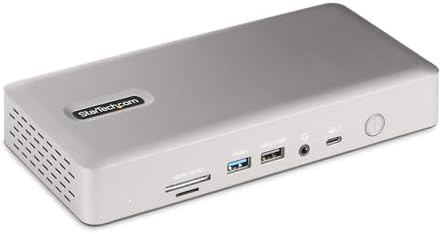
DisplayLink docks (for more screens than the host supports natively; driver required):


Certified cable swap:
More detail: dual-4K Thunderbolt/USB4 hub, best MacBook docks, DisplayLink docks for Apple Silicon, USB4 docks for Windows, and USB-C hub vs docking station.
FAQ
Why does one monitor work but not the second?
Usually the host display limit (base M1/M2 Macs), MST on a Mac, or bandwidth at high resolution and refresh rate.
Do I need drivers for a Thunderbolt dock?
Not for displays on a native Thunderbolt dock. DisplayLink docks always need the DisplayLink driver.
Can a USB-C hub add a monitor to any laptop?
Only if the laptop’s USB-C port supports video output (DisplayPort Alt Mode or Thunderbolt), unless the hub uses DisplayLink.
Related: MacBook won’t run two monitors · Dock not charging your laptop · One dock for Mac and Windows · Home
Disclosure: As an Amazon Associate I earn from qualifying purchases. Product cards and outbound Amazon links are affiliate links. Tag: onsight068-20.
Pingback: One Docking Station for Mac and Windows? | RavenSkye