Last updated: September 28, 2026
Research guide based on DisplayLink Manager requirements, Apple Silicon native display limits, and manufacturer dock specs. Not a hands-on lab test yet.
As an Amazon Associate I earn from qualifying purchases.
If your MacBook’s chip only drives one native external, no Thunderbolt dock invents a second GPU pipe. DisplayLink (USB graphics + drivers) is the honest workaround for dual/triple desks on base M-series — with real costs: Screen Recording permission, CPU/GPU encode load, heat, and no HDCP (Netflix/Prime/Disney+ often fail on those screens).
Best for: Base M1/M2/M3 (and similar one-external configs) that need a second/third productivity monitor; IT desks that already standardize on DisplayLink Manager.
Not for: Protected streaming on the DisplayLink screens, competitive gaming, or Pro/Max owners who already get two+ natives via Thunderbolt 4.
Short answer: For a base Apple Silicon MacBook that needs two external monitors, the Plugable UD-6950PDH is the DisplayLink dock to start with.
FAQ
Will DisplayLink play Netflix on a base M-series MacBook?
Often no. Many streaming apps fail or go black on DisplayLink outputs because those screens do not support HDCP. Use the built-in display or a native port for streaming.
Do I need DisplayLink on an M-series Pro or Max for two external displays?
Usually not. Use a Thunderbolt 4 dock for two native externals, and keep DisplayLink for going past the chip’s display budget.
What does a DisplayLink dock require on a Mac?
Install DisplayLink Manager and grant Screen Recording permission. Expect extra CPU load that is fine for documents and chat, and weaker than native Thunderbolt for 4K video preview.



Quick picks
- Best dual 4K DisplayLink starter: Plugable UD-6950PDH
- Compact dual HDMI DisplayLink: Plugable UD-ULTC4K
- Triple/quad ambitions (Wirecutter-style): Kensington SD5900T / SD5910T
- Budget triple HDMI DisplayLink: Kensington SD4760P
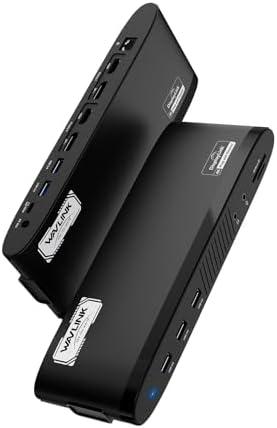
- Value dual/triple Windows+Mac kits: WAVLINK / Tobenone DisplayLink docks
Honest DisplayLink caveats (read before buying)
| Topic | What to expect |
|---|---|
| Drivers | Install DisplayLink Manager; grant Screen Recording on macOS |
| DRM / HDCP | Many streaming apps fail or black-screen on DisplayLink outputs |
| Performance | CPU/encode cost; fine for docs/IDE/Slack; weaker for 4K video edit preview |
| vs native TB4 | If your chip already supports two externals, prefer Thunderbolt 4 first |
1. Plugable UD-6950PDH — dual 4K DisplayLink default
Still the clearest “base MacBook needs two externals” answer: dual HDMI or DP paths, PD charging, and a mature Plugable + DisplayLink support story. Expect dual 4K@60 as the goal, not native GPU bandwidth.
Best for: M1/M2 Air dual-monitor productivity.
Not for: HDCP streaming on both externals.
2. Plugable UD-ULTC4K — smaller dual HDMI DisplayLink
When you want dual 4K@60 HDMI DisplayLink without a full desk brick, this 7-in-1 style dock keeps the same driver model with fewer ports. Verify wattage against your MacBook’s charger class.
3. Kensington SD5900T / SD5910T — DisplayLink for triple/quad
These Thunderbolt 4 + DisplayLink hybrid docks show up whenever the brief is “MacBook Air, three or four screens.” Same DRM/CPU caveats, scaled up. Prefer SD5900T/SD5910T only after you accept drivers — do not buy them expecting native TB4 multi-display magic on a base chip.
4. Kensington SD4760P — triple HDMI DisplayLink value
USB-C DisplayLink with three HDMI outputs and ~100W charging claims. Useful for Windows + Mac mixed fleets that standardize on HDMI walls. Confirm macOS Manager compatibility before fleet rollout.
5. WAVLINK & Tobenone — budget multi-monitor DisplayLink
WAVLINK dual/triple DisplayLink kits and Tobenone’s triple-monitor docks undercut Kensington on price. Check return windows, adapter wattage, and current DisplayLink Manager notes — budget SKUs move faster than enterprise docs.
Buying tips
- Confirm your exact Mac chip’s native external limit first (see our matrix post).
- Install DisplayLink Manager and test DRM apps before mounting arms permanently.
- Keep one native Thunderbolt/HDMI screen for streaming if you need HDCP.
- Match PD watts; many Pros want 96W+ even when DisplayLink drives the pixels.
FAQ
Will DisplayLink give me smooth Netflix on a base M2 Air?
Often no — HDCP/DRM fails on DisplayLink outputs. Use the built-in or a native port for streaming.
Do I need DisplayLink on M4 Pro?
Usually not for two externals — use Thunderbolt 4. DisplayLink is for going beyond the native budget.
Is triple display worth the CPU cost?
For spreadsheets/IDE/chat yes; for color-critical or protected video, no.
Related: Best MacBook docks (native vs DisplayLink) · Dual-4K Thunderbolt/USB4 hub · RavenSkye home
Keep comparing: the Apple Silicon display limits matrix shows which chips actually need DisplayLink. Disclosure: As an Amazon Associate I earn from qualifying purchases. Boxes and links are paid links. Tag: onsight068-20.
Pingback: Best Thunderbolt / USB4 Dual 4K Docks (2026) | RavenSkye
Pingback: Monitor Not Detected Through Dock? Fixes | RavenSkye
Pingback: MacBook Won’t Run Two Monitors? The Fix | RavenSkye
Pingback: Best Docking Station Under $100 for Laptops (2026) | RavenSkye