Last updated: October 15, 2026
Money page for MacBook Pro M5 dual-monitor desk buyers. Display counts follow Apple’s published Apple Silicon limits (summarized in our matrix) and manufacturer dock listings. Specs from manufacturers/Amazon; not a lab test. Confirm your exact MacBook Pro year/config on Apple’s support pages before you buy.
As an Amazon Associate I earn from qualifying purchases.
Best for: MacBook Pro with an M5 Pro or M5 Max chip that needs a one-cable dual-monitor desk (and M5 base Pro owners who have already checked Apple’s external-display table for their exact model).
Not for: Base M1/M2 MacBooks expecting two native monitors from a Thunderbolt dock — that needs DisplayLink. See why a MacBook won’t run two monitors.
The short answer for M5 MacBook Pro
On Apple Silicon, the chip class sets how many external displays you get, not the dock brand. In our Apple Silicon display limits matrix:
- M5 Pro / M5 Max: typically 2+ native externals → buy a Thunderbolt 4 (or Thunderbolt 5 if your Pro has TB5 ports) dock.
- Base M5: verify Apple’s table for your exact MacBook Pro. Do not assume marketing copy. If natives are under two, use DisplayLink or accept one external.
A Thunderbolt dock does not unlock extra native displays beyond the chip. DisplayLink does, with a driver install and DRM caveats (DisplayLink guide).
Quick picks
- Best overall for M5 Pro/Max desks: CalDigit TS4
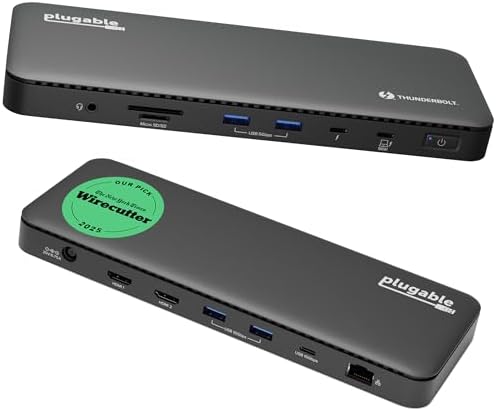
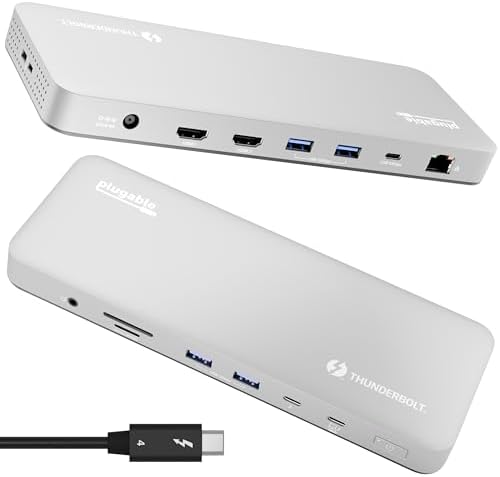
- Best TB4 value: Plugable Thunderbolt 4 dock (100W charging, dual monitor per listing)
- Best Mac-labeled TB4 for M4/M5: Plugable Thunderbolt 4 Dock for M4/M5 MacBook Air & Pro
- TB5 path (host must have Thunderbolt 5): CalDigit TS5
- Base-chip dual-monitor fix: Plugable UD-6950PDH DisplayLink



1. CalDigit TS4 — best overall dual-monitor desk for M5 Pro/Max
18 ports, 98W charging, 2.5GbE, three Thunderbolt 4 ports. On Pro/Max hosts this remains the high-port permanent desk pick. It will not invent a second native display on a base chip that only supports one. Full notes: TS4 review and TS4 vs TS5 vs TS5 Plus.
Best for: M5 Pro/Max MacBook Pro desks that want Ethernet + card readers. Not for: base-chip dual-monitor needs without DisplayLink.
2. Plugable Thunderbolt 4 docks — simpler dual-monitor TB4
The general Plugable Thunderbolt 4 dock lists 100W charging and dual-monitor support. The M4/M5-labeled Plugable Thunderbolt 4 dock is aimed at recent MacBook Air and Pro models with 100W charging. Both are Thunderbolt 4 paths for hosts that already support two natives.
3. CalDigit TS5 — when the MacBook Pro has Thunderbolt 5
Thunderbolt 5 dock with higher host bandwidth when the laptop has TB5 ports. Backward compatible with Thunderbolt 4/USB4 hosts at lower speeds; confirm the listing and is Thunderbolt 5 worth it before you pay the premium.
4. DisplayLink path — if your M5 config is still one-external
If Apple’s table for your exact model still limits you to one native external (or you need more screens than the chip allows), DisplayLink is the workaround: install DisplayLink Manager, grant Screen Recording on macOS, accept CPU cost and DRM limits on those screens. Plugable UD-6950PDH lists dual 4K 60Hz HDMI with 100W PD.
Buying checklist for MacBook Pro M5 dual monitors
- Confirm chip: About This Mac → M5 vs M5 Pro vs M5 Max.
- Check Apple’s external displays support for your exact year/model.
- Use a Thunderbolt 4/5 host port and a certified cable (cable guide).
- Match dock PD wattage to the MacBook Pro under load (M1–M5 MacBook docks guide covers the broader range).
- If a screen stays black, see monitor not detected through a dock.
Related RavenSkye guides
- Best docking stations for MacBook (M1–M5) — full money page
- Why won’t my MacBook run two external monitors?
- Apple Silicon display limits matrix
- Best DisplayLink docks for Apple Silicon
- Best Thunderbolt/USB4 docks for dual 4K
Related: MacBook docks · two monitors answer · Home
Disclosure: As an Amazon Associate I earn from qualifying purchases. Product cards and outbound Amazon links are affiliate links. Tag: onsight068-20.