Last updated: October 8, 2026
Short troubleshooting answer for laptop docks that power the screens but not the laptop (or charge slowly). Wattages are taken from manufacturer listings and our existing guides; not a lab test.
As an Amazon Associate I earn from qualifying purchases.
Best for: Anyone whose dock connects monitors and USB devices but shows “not charging,” “slow charger,” or a draining battery.
Not for: Phones and tablets that only need a few watts, or laptops that only charge from a barrel-jack adapter.
The short answer
A dock usually fails to charge for one of five reasons:
- Not enough wattage. The dock’s power-delivery (PD) rating is lower than the laptop needs under load. For example, a 90W or 98W dock can fall behind a high-power workstation laptop.
- Wrong port. The laptop or the dock has a USB-C port that carries data/video but not charging. Use the dock’s host/upstream port and the laptop’s charging-capable Thunderbolt/USB-C port.
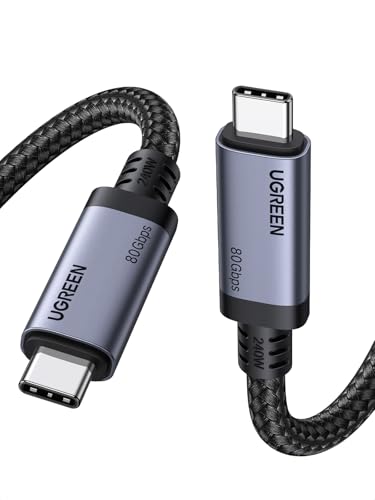
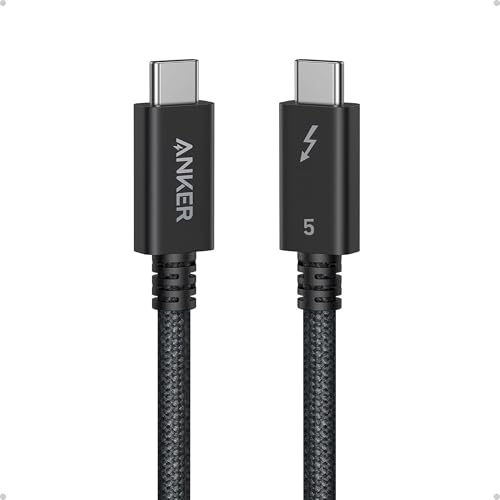
- Cable not rated. A thin or uncertified cable can limit power (and video). Use the cable that came with the dock or a certified Thunderbolt/USB4 cable rated for the wattage.
- Laptop needs more than standard PD, or a vendor charging mode. Many docks cap at about 100W. Some Dell Latitude/Precision models use Dell ExpressCharge through Dell docks (often up to about 130W on supported models), which generic docks do not fully replace.
- Dock power supply missing or undersized. The dock’s own brick must supply the laptop plus monitors and USB devices. Third-party replacement adapters or the wrong brick can cut the charge.
Quick checklist
- Find your laptop charger’s wattage (on the brick). Match or beat it with the dock’s laptop PD rating.
- Plug into the dock’s marked host port, not a downstream USB-C port.
- Swap to the original or a certified cable (Thunderbolt vs USB-C cable for a dock).
- Confirm the dock’s own power adapter is connected and is the correct model.
- Dell fleet? Use a Dell dock for ExpressCharge (Dell WD22TB4 guide, WD22TB4 review).
- Update dock firmware and the laptop’s Thunderbolt/USB-C drivers or BIOS.
- Travel hub only? Most pass through a USB-C charger, so the hub’s rating and your wall charger both matter (travel hubs, hub vs dock).
Picks that fix the common cases
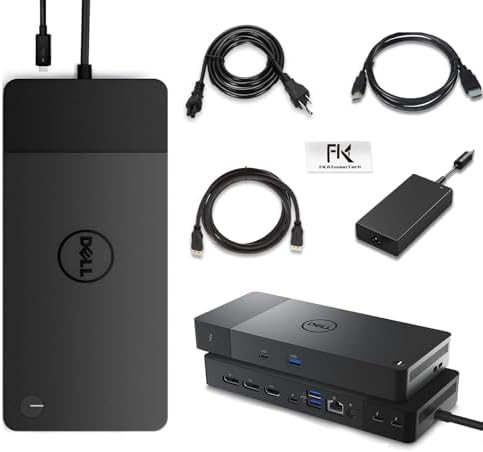
Dell laptops (ExpressCharge path):

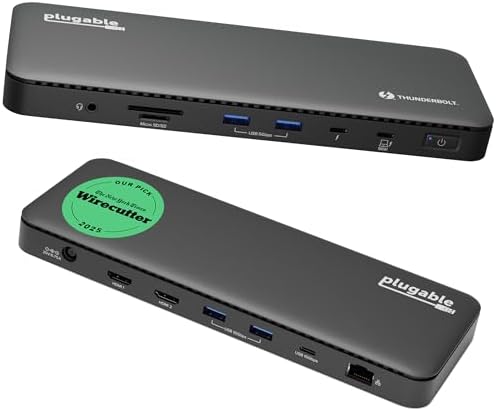
Up to 100W-class laptop charging (Windows USB4 / Thunderbolt and Mac): Anker 568 (up to 100W per listing), Plugable Thunderbolt 4 dock (100W), CalDigit TS4 (98W).


Certified cable replacement:
Compare more options in the dual-4K Thunderbolt/USB4 hub, best USB4 docks for Windows, MacBook docks, and CalDigit TS4 vs TS5 vs TS5 Plus.
FAQ
My laptop says “slow charger” on the dock. Is it broken?
Usually not. The dock is supplying less wattage than the laptop’s own charger. Check the PD rating and cable.
Can a dock charge a laptop that needs more than 100W?
Only if both dock and laptop support a higher mode (for example Dell ExpressCharge on supported Dell models). Otherwise expect slower charging or battery drain under load.
Does a Thunderbolt 5 dock charge faster?
Some Thunderbolt 5 docks list higher PD ratings, but your laptop must support it. See is Thunderbolt 5 worth it.
Related: Dual-4K dock hub · Dell docks · Monitor not detected through a dock · One dock for Mac and Windows · Home
Disclosure: As an Amazon Associate I earn from qualifying purchases. Product cards and outbound Amazon links are affiliate links. Tag: onsight068-20.
Pingback: Best Thunderbolt Dock for Windows Laptops (Dell, Lenovo, HP) 2026 | RavenSkye