Last updated: September 28, 2026
Research roundup (manufacturer specs + cross-checked reviews). Not a hands-on lab test yet — we label winners by use case. Specs and Amazon prices change; confirm on the product page before you buy.
As an Amazon Associate I earn from qualifying purchases.
If you run dual 4K monitors from one Thunderbolt or USB4 cable, the dock choice is really about three things: real dual 4K@60Hz on your host, enough laptop charging under load, and ports you will actually use every day (Ethernet, SD, downstream TB4).
Best for: Windows Thunderbolt 4 / USB4 laptops and Intel Macs (plus Apple Silicon Pro/Max chips that can drive two externals) that want a one-cable dual-4K desk.
Not for: Base M1/M2/M3 MacBooks expecting dual native externals — Apple’s host limit still applies; see our MacBook docks guide for DisplayLink paths. Also not for travel-only dongle buyers who only need one HDMI.
Short answer: For a Windows Thunderbolt 4 or USB4 laptop, or an Intel Mac, that can drive two displays, the CalDigit TS4 is the best overall dual-4K dock on this page.
FAQ
Will a Thunderbolt 4 dock give dual 4K on a base M1, M2, or M3 MacBook?
No. Those machines are limited to one native external display, and a Thunderbolt dock does not override that. You need a Pro or Max chip, or a newer config Apple lists as supporting two displays, or a DisplayLink dock.
Is USB4 enough for dual 4K, or do I need Thunderbolt 4?
USB4 docks such as the Anker 568 can do dual 4K at 60Hz on capable Windows hosts. For Mac dual-display reliability and daisy-chaining Thunderbolt devices, prefer a Thunderbolt 4 certified dock.
Which dock should a Dell fleet buy instead of the CalDigit TS4?
The Dell WD22TB4. Supported Dell notebooks can use Dell’s higher ExpressCharge path, which generic Thunderbolt 4 docks do not fully replace.



Quick picks
- Best overall: CalDigit TS4 — densest ports, 98W PD, 2.5GbE, dual 4K/60 on supported hosts.
- Best for Dell ExpressCharge fleets: Dell WD22TB4 — ~130W Dell path + built-in DP/HDMI.
- Best Windows USB4 value: Anker 568 — dual 4K@60 / triple 4K@30 on Windows (Anker does not recommend for Mac).
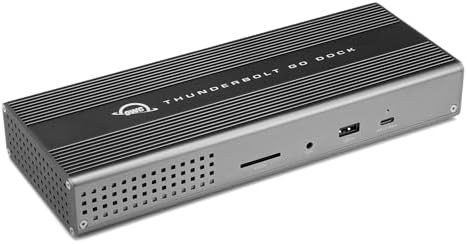
- Cleaner TB4 desk: OWC Thunderbolt Go — simpler port set.
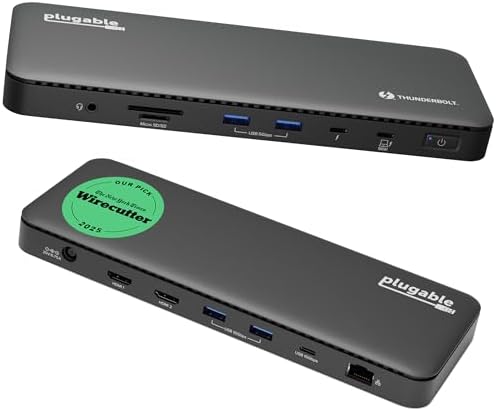
- Strong Wirecutter-class alternative: Plugable TBT4-UD5 — dual HDMI TB4 with ~100W PD.
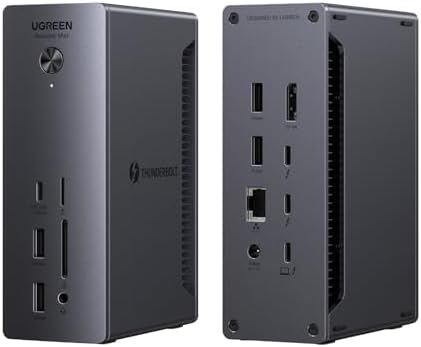
- Feature-dense TB4 value: UGREEN Revodok Max 213 — dual 4K@60, 2.5GbE class connectivity.
Comparison snapshot
| Dock | Host link | Dual 4K@60 | Laptop PD | Standout | Approx MSRP |
|---|---|---|---|---|---|
| CalDigit TS4 | TB4 | Yes* | 98W | 18 ports, 2.5GbE, SD/microSD | ~$380 |
| Dell WD22TB4 | TB4 | Yes* | ~90W USB-C / ~130W Dell | Dell ExpressCharge + DP/HDMI | ~$320 |
| Anker 568 | USB4 | Yes (Win) | 100W | Windows multi-display value | ~$300 |
| OWC Thunderbolt Go | TB4 | Yes* | ~60–70W class | Simple Mac/Windows TB4 desk | varies |
| Plugable TBT4-UD5 | TB4 | Yes* | ~100W (96W cert) | Dual HDMI, IT-friendly | ~$200 |
| UGREEN Revodok Max 213 | TB4 | Yes* | ~90W class | 13-in-1 + 2.5GbE | varies |
*Dual external 4K@60 requires a host that can drive two displays over Thunderbolt/USB4. Base Apple Silicon MacBooks cannot natively.
1. CalDigit TS4 — best overall for dual-4K desks
Why it wins: 18 ports including three Thunderbolt 4, DisplayPort 1.4, five USB-A 10Gb/s, UHS-II SD + microSD, 2.5GbE, and up to 98W host charging. On supported Windows and Intel Mac hosts you get dual 4K@60; Pro/Max Apple Silicon can go higher with DSC.
Best for: One-cable creator/engineer desks that need card readers, fast LAN, and downstream TB4 daisy-chain.
Not for: Budget desks or MacBooks that only need one external + a travel hub.
Pros: Port density, 2.5GbE, charging headroom, Mac + Windows docs.
Cons: Cost; overkill if you only need two USB ports and HDMI.
2. Dell WD22TB4 — best if you live on Dell Latitude/Precision
Why pick it: Thunderbolt 4 with dual DisplayPort + HDMI and Dell’s higher ExpressCharge path on supported Dell notebooks. Dual 4K@60 is in the same class as other TB4 docks when the host allows it.
Best for: Corporate Dell fleets that already standardize on WD-series docks.
Not for: Non-Dell laptops that need every watt of a 130W ExpressCharge path — you usually cap at standard USB-C PD.
3. Anker 568 USB4 — best Windows multi-monitor value
Why pick it: USB4 40Gb/s host link, ~100W PD, two DP 1.4 + HDMI. On Windows: dual 4K@60 or triple 4K@30 (not three 4K@60 at once).
Best for: Windows USB4/TB4 laptops that want displays + charging without CalDigit pricing.
Not for: MacBooks — Anker does not recommend this dock for macOS dual-display plans.
4. OWC Thunderbolt Go Dock — simpler TB4 desk cable
Why pick it: Clean Thunderbolt 4 desk dock with fewer ports than the TS4, often easier to justify if you do not need 2.5GbE or dual card readers.
Best for: Mac + Windows users who want a reliable TB4 single-cable desk without maxing every port.
Not for: High-wattage notebooks that want ~98–100W sustained PD.
5. Also strong: Plugable TBT4-UD5 & UGREEN Revodok Max 213
Plugable’s TBT4-UD5 is a frequent “buy this instead of max ports” pick: dual HDMI, ~100W charging, and clear Windows/Mac display caveats. UGREEN’s Revodok Max 213 packs dual 4K@60 and 2.5GbE-class networking into a denser mid-tier box — verify your host’s TB4/USB4 video budget before assuming triple displays.
How to choose in 60 seconds
- Confirm your laptop can drive two externals over TB4/USB4 (Dell/Lenovo/HP TB4 Windows: usually yes; Intel Mac: yes; base M-series: usually no).
- Match charging watts to your laptop’s brick (98–100W covers many 14–16″ machines; some Dell workstations want the WD ExpressCharge path).
- Count must-have ports: 2.5GbE + SD → TS4; Dell fleet → WD22TB4; Windows-only budget multi-display → Anker 568; simpler TB4 desk → OWC or Plugable.
- Buy a short certified Thunderbolt / USB4 cable if you replace the included one — passive USB-C charge cables will disappoint.
FAQ
Will any Thunderbolt 4 dock give me dual 4K on a base M1/M2/M3 MacBook?
No. Apple limits those machines to one external display natively. You need Pro/Max (or newer configs that officially support two) or a DisplayLink dock — covered in our MacBook docks guide.
Do I need Thunderbolt 4 or is USB4 enough?
USB4 docks (like the Anker 568) can deliver dual 4K@60 on capable Windows hosts. For Mac dual-display reliability and daisy-chain TB devices, prefer a Thunderbolt 4 certified dock.
What’s the difference between dual 4K@60 and triple 4K@30?
Bandwidth. Many USB4 docks advertise triple 4K but only at 30Hz. For smooth dual productivity panels, prioritize confirmed dual 4K@60 on your OS.
Is this page hands-on tested?
Not yet. It is a research roundup from manufacturer specs and cross-checked docking reviews. We will update sections with lab notes when we have them.
Related guides: RavenSkye home · MacBook docks (M1–M5) · Dell ExpressCharge fleets · USB4 dual 4K Windows · Thunderbolt docks for Windows laptops (Dell, Lenovo, HP) · Reviews: CalDigit TS4, Dell WD22TB4, Anker 568.
Keep comparing: CalDigit TS4 vs TS5 vs TS5 Plus, whether Thunderbolt 5 is worth it yet, the Apple Silicon display limits matrix, and DisplayLink docks when a base M-series Mac needs an extra screen. Disclosure: As an Amazon Associate I earn from qualifying purchases. Product boxes and links above are affiliate links (paid links).
Pingback: Best MacBook Docks M1–M5: Dual Displays & Caveats | RavenSkye
Pingback: Best USB4 Docks for Dual 4K Windows Laptops (2026) | RavenSkye
Pingback: Best Dual Ultrawide Monitor Arms for Docking Desks | RavenSkye
Pingback: CalDigit TS4 vs TS5 vs TS5 Plus (2026) | RavenSkye
Pingback: Best Travel USB-C Hubs for Hybrid Work (2026) | RavenSkye
Pingback: Is Thunderbolt 5 Worth It? Docks & Cables (2026) | RavenSkye
Pingback: Best Dell WD22TB4 ExpressCharge Docks | RavenSkye
Pingback: Thunderbolt vs USB-C Cable for a Dock | RavenSkye
Pingback: Desk Setup Gifts for Remote Workers & Mac Users | RavenSkye
Pingback: Docking Station Not Charging Laptop? Fixes | RavenSkye