Last updated: September 28, 2026
Research guide based on Apple’s published external-display limits, manufacturer dock specs, and cross-checked Mac docking reviews. Not a hands-on lab test yet.
As an Amazon Associate I earn from qualifying purchases.
Buying a “MacBook dock” without checking your chip is how people end up with one blank monitor. Apple Silicon has hard native display budgets: base M1/M2 (and many base M3 with lid open) support one external; Pro/Max (and newer multi-display configs) support two or more. No Thunderbolt dock overrides that — only DisplayLink (driver + caveats) does.
Best for: MacBook Air/Pro owners who know their chip’s native limit and want an honest path — TB4 for Pro/Max, DisplayLink for base chips that need two externals.
Not for: Anyone expecting a cheap USB-C hub to magically unlock dual 4K@60 on a base M1 Air with the lid open.
Short answer: If your MacBook can drive two native displays, such as Pro and Max chips, the CalDigit TS4 is the best overall dock here; a base M1 or M2 still needs a DisplayLink dock such as the Plugable UD-6950PDH for a second external.
FAQ
Can a Thunderbolt dock add a second native display on a base M1 or M2 MacBook?
No. Those chips support one external display natively, and no Thunderbolt dock overrides that limit.
What dock adds a second monitor on a base Apple Silicon MacBook?
The Plugable UD-6950PDH is the DisplayLink pick on this page. Install DisplayLink Manager, allow Screen Recording, and expect extra CPU load plus no HDCP on those screens.
Do Pro and Max MacBooks need DisplayLink for two external displays?
No. Pro and Max chips, and other configs Apple lists for two or more externals, should use a Thunderbolt 4 dock. The CalDigit TS4 is the default desk pick here.



Quick picks
- Best overall (Pro/Max / multi-display chips): CalDigit TS4
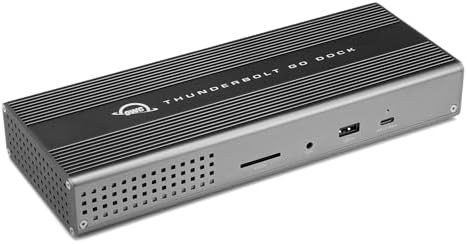
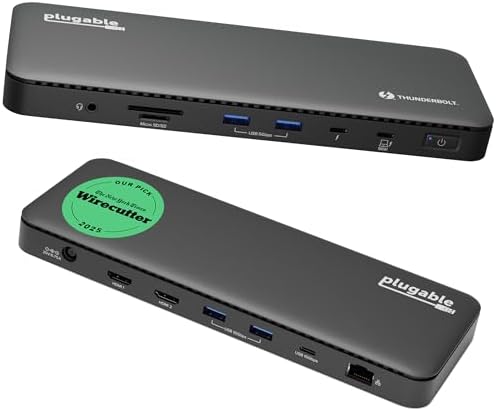
- Simpler TB4 desk: OWC Thunderbolt Go or Plugable TBT4-UD5
- Enterprise-style TB4: Kensington SD5780T
- Best DisplayLink for base M-series dual 4K: Plugable UD-6950PDH
- DisplayLink for triple/quad ambitions: Kensington SD5900T (drivers + DRM caveats)
Apple Silicon display reality check
| Chip class | Native externals (typical) | Dock strategy |
|---|---|---|
| Base M1 / M2 | 1 external | TB4 dock = one display; need DisplayLink for two |
| Base M3 / newer base configs | Often 2 only in clamshell / check Apple matrix | Verify Apple’s table for your exact year |
| Pro / Max (M1–M5 era) | 2+ externals | Thunderbolt 4 dock is the right default |
| Intel Mac | Usually 2 via TB3/TB4 | Any good TB3/TB4 dock |
1. CalDigit TS4 — Mac power-user default
Port density kings: 98W PD, 2.5GbE, SD/microSD, three TB4 ports. On Pro/Max hosts this is still the “stop researching” pick for a permanent desk. On base M1/M2 it will not invent a second native display.
Best for: M-series Pro/Max desks that want card readers + fast LAN.
Not for: Base-chip dual-monitor dreams without DisplayLink.
2. OWC Thunderbolt Go & Plugable TBT4-UD5 — cleaner TB4 desks
If you do not need 18 ports, OWC’s Thunderbolt Go and Plugable’s TBT4-UD5 keep the TB4 single-cable workflow with fewer extras. Watch charging wattage on larger 16″ Pros — some prefer CalDigit’s 98W headroom.
3. Kensington SD5780T — TB4 with Mac dual/6K notes
Thunderbolt 4 dock with ~96–100W PD and dual 4K/6K claims that track host capability. Useful when you want a more “IT dock” chassis than CalDigit’s studio look.
4. DisplayLink path — Plugable UD-6950PDH
This is the honest answer for base Apple Silicon that needs two externals: install DisplayLink Manager, grant Screen Recording permission, accept CPU cost and no HDCP (Netflix/Prime often fail on those screens). Dual 4K@60 is the goal; it is not a native GPU path.
Best for: Base M1/M2/M3 multitaskers who accept drivers.
Not for: DRM streaming on the DisplayLink screens, or users who refuse driver installs.
5. Kensington SD5900T — DisplayLink for more than two
When the brief is triple/quad on Mac, DisplayLink chassis like the SD5900T show up in Wirecutter-style shortlists. Same caveats: drivers, permissions, DRM, and heat/CPU. Prefer native TB4 if your chip already supports two externals.
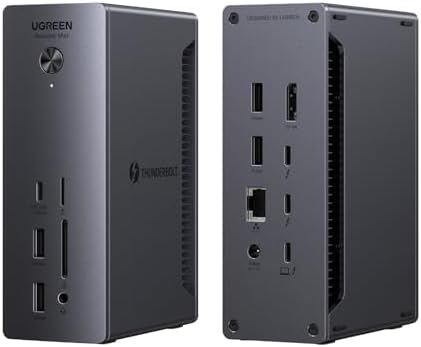
6. Mid-tier TB4: UGREEN options
UGREEN’s Thunderbolt 4 docks (8-in-1 and Revodok Max 213) are sensible if CalDigit pricing is too steep and you still want dual 4K@60 on a capable Mac. Confirm macOS display claims for your exact chip before buying.
Buying tips
- Look up your MacBook’s chip on Apple’s external-display support page first.
- Prefer Thunderbolt 4 certified docks + short certified cables for native multi-display.
- Use DisplayLink only when you knowingly trade DRM/CPU for extra screens.
- Match PD watts to your MacBook’s charger class (many Pros want 96W+).
FAQ
Can a Thunderbolt 5 dock break the base M1 dual-display limit?
No. Host GPU/display engine limits still apply for native outputs.
Is DisplayLink “bad”?
It is a tool. Great for productivity screens; poor for protected video and some games.
Should Intel Mac owners care about M-series matrices?
Less so — TB3/TB4 dual display usually works; still buy certified cables.
More docks: Dual-4K Thunderbolt/USB4 hub · RavenSkye home
Keep comparing: use the Apple Silicon display limits matrix before you buy, DisplayLink docks if the chip allows only one native screen, or the CalDigit TS4 review for a full Thunderbolt 4 desk. Disclosure: As an Amazon Associate I earn from qualifying purchases. Boxes and links are paid links.
Pingback: Best DisplayLink Docks for MacBook (Apple Silicon) | RavenSkye
Pingback: Is Thunderbolt 5 Worth It? Docks & Cables (2026) | RavenSkye